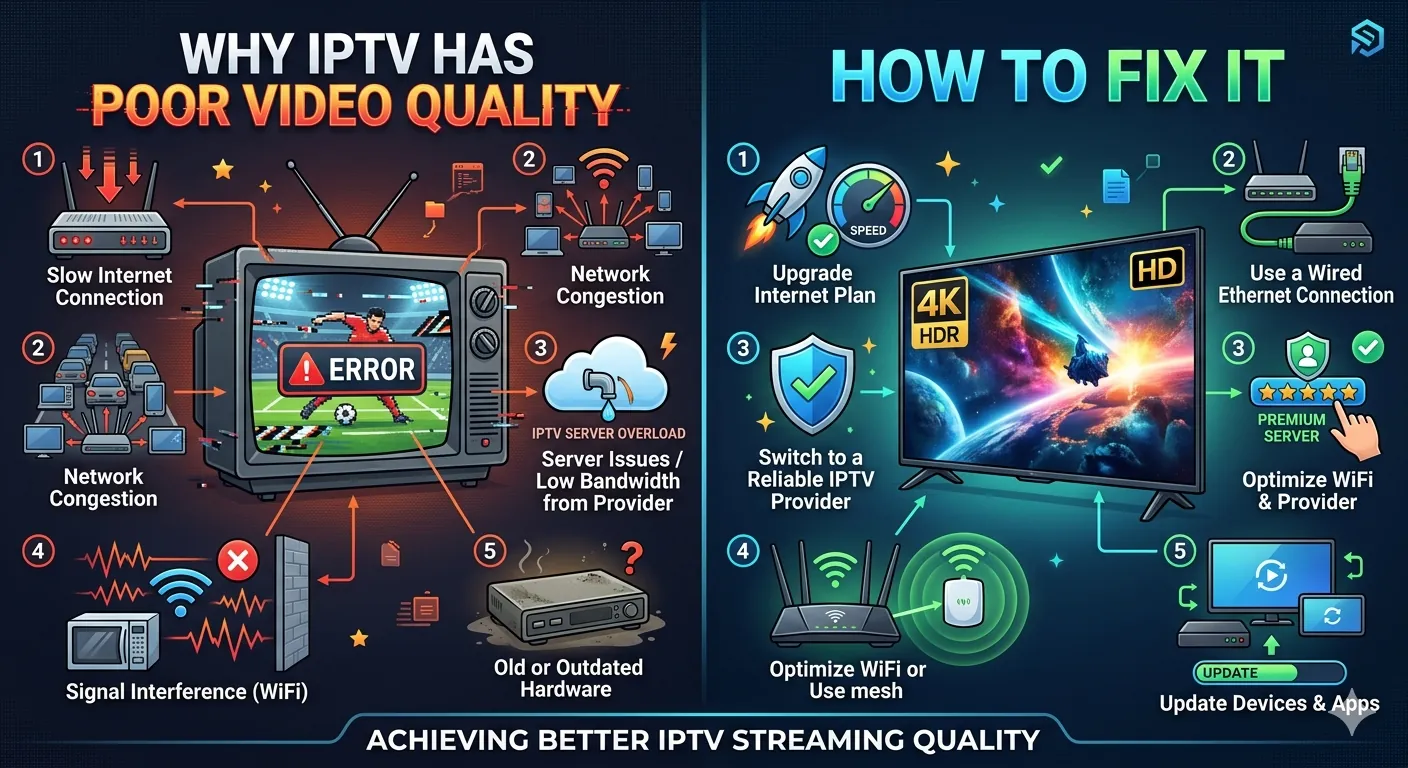
Causes
What Causes IPTV Poor Video Quality?
Many readers assume blurry IPTV always means they need faster internet. Sometimes that is true, but not always. Picture quality is shaped by the entire chain: source resolution, bitrate, compression, network delivery, app playback engine, hardware decoding, TV settings, and display size. If one part of that chain is weak, the final image suffers.
Low Bitrate or Over-Compressed Streams
The most common cause of pixelated IPTV video is a stream that does not carry enough visual data. Even if a stream is labeled HD or 4K, aggressive compression can strip detail from faces, text, grass, shadows, and movement. This becomes especially obvious on larger TVs.
Weak or Unstable Internet Connection
If bandwidth dips or packet loss rises, some players reduce stream quality to stay alive. That can make the image look soft or blocky without fully stopping playback. In other cases, the player keeps trying to hold the original quality and starts stuttering instead.
Device Limitations
Not every device handles high-bitrate IPTV equally well. Older Smart TVs, weak Android boxes, and cheap streaming hardware may have limited decoding performance. The result can look like poor source quality when the real issue is the device dropping frames or struggling to render the stream cleanly.
Incorrect IPTV App Settings
Some apps force suboptimal players, disable hardware decoding, or hold onto broken cache data. Others react badly to certain playlists or codecs. If IPTV poor video quality appears in one app but not another, the player is part of the problem.
Display and TV Image Settings
Picture quality is not just about the stream. Over-sharpening, motion smoothing, aggressive noise reduction, or low-power display modes can make a decent stream look worse. That matters a lot on Smart TVs where default picture modes are not optimized for streaming clarity.
Solutions
How to Improve IPTV Video Quality
To improve IPTV picture quality, work through the source, connection, app, and display one layer at a time. That makes it easier to separate a true provider issue from a setup issue inside your own environment.
1. Test Your Internet for Stability, Not Just Speed
Use Speedtest or Cloudflare Speed Test. Look for steady results, low packet loss, and consistent latency. IPTV internet speed requirements matter, but stable delivery matters just as much for maintaining picture quality.
2. Move to Ethernet or Better Wi-Fi
If your IPTV looks blurry or breaks into blocks on Wi-Fi, test Ethernet. If Ethernet is not possible, move the device to 5 GHz Wi-Fi and reduce physical barriers between the router and the player. Weak wireless links often create quality drops before they create full buffering.
3. Clear Cache and Update the IPTV App
Corrupted cache, outdated players, or bad app builds can affect how the stream is decoded. Clearing cache and updating the app is one of the easiest ways to fix IPTV pixelated video on Android TV, Fire TV, and IPTV boxes.
4. Enable Hardware Decoding or Try Another Player
Hardware decoding can significantly improve smoothness and clarity if the device supports it properly. If the current app still looks weak, test another IPTV player. Different apps handle codecs and adaptive playback differently.
5. Compare the Same Stream on Different Devices
If the stream looks sharp on your laptop but soft on the living-room TV, the TV app or hardware is likely the bottleneck. If it looks bad on every device, then the source or the network deserves more attention.
6. Check TV Picture Modes
Use a balanced picture mode rather than the most aggressive dynamic setting. Turn down harsh sharpening and excessive motion processing. These settings can exaggerate artifacts that are already present in compressed IPTV video.
- Use strong, stable bandwidth for HD and 4K streams
- Prefer players with reliable hardware acceleration
- Keep your IPTV Setup Guide nearby if you need a clean reinstall
- Compare streams across more than one device before blaming the provider
- Review the IPTV Subscription Plans if you are testing a new long-term service
Troubleshooting
Advanced Troubleshooting for Blurry or Pixelated IPTV
When the simple fixes fail, your job is to determine whether the stream is bad before it reaches you or whether your playback environment is degrading it. That distinction saves time and helps support teams answer faster.
Look for Source-Limit Clues
If logos, scoreboards, subtitles, and edges look soft on every device, the stream bitrate or source quality is likely low. No app setting can create detail that does not exist in the original feed. This is why provider quality control matters so much.
Check Motion Scenes Carefully
Sports reveal IPTV quality issues faster than talk shows. Fast motion, grass texture, crowd shots, and score overlays make low bitrate compression obvious. If the image falls apart mainly during movement, compression or unstable delivery is often the reason.
Test Peak-Hour Changes
If channels look worse only at busy times, the network path or provider-side load may be reducing delivery quality. Compare the same content during quieter hours. A cleaner picture late at night is a useful clue.
Know When the Problem Is the Feed Itself
Some channels simply arrive in lower source quality than others. That is common in international feeds, niche channels, and overloaded rebroadcast chains. If premium channels look excellent but one small category looks weak, the issue may be source-specific rather than system-wide.
FAQ
Frequently Asked Questions About IPTV Video Quality
Why is my IPTV video blurry?
Blurry IPTV often comes from low bitrate, weak internet stability, poor app decoding, or a source feed that simply is not delivering enough detail.
Why is IPTV pixelated during sports?
Sports exposes compression problems quickly because fast motion needs more bitrate than still scenes. Low bitrate or unstable delivery causes blockiness and smearing.
Can better internet improve IPTV picture quality?
Yes, especially if your current connection is unstable. Better bandwidth and lower packet loss can help the app hold higher quality more consistently.
Does a better IPTV app help?
It can. Different apps and player engines handle codecs, hardware acceleration, and adaptive playback differently.
Can a Smart TV itself cause bad IPTV quality?
Yes. Older TVs and weaker built-in apps may decode poorly or expose artifacts more clearly than newer dedicated streaming devices.
What should I test first if IPTV quality suddenly gets worse?
Check whether the issue affects all channels, all devices, and both live TV and VOD. That tells you whether the problem is local or source-related.
Expert Review
Editor Verdict On This Quality Guide
4.8/5
This article is strongest when users need to separate source-quality limits from network and device issues. It is practical, clear, and designed for readers who want a reliable troubleshooting sequence instead of generic streaming advice.
Conclusion
Better IPTV Quality Starts With Better Diagnosis
Poor IPTV video quality is rarely random. Once you separate source bitrate, internet stability, device performance, and app behavior, the path to a cleaner picture gets much clearer. That is why testing in layers matters. It helps you fix what is fixable and identify when the issue sits upstream with the feed itself.
If you want a cleaner setup after troubleshooting, go through the IPTV Setup Guide, review the IPTV Subscription Plans, or continue into the broader IPTV Troubleshooting Blog.