Causes
What Causes IPTV Buffering and Freezing?
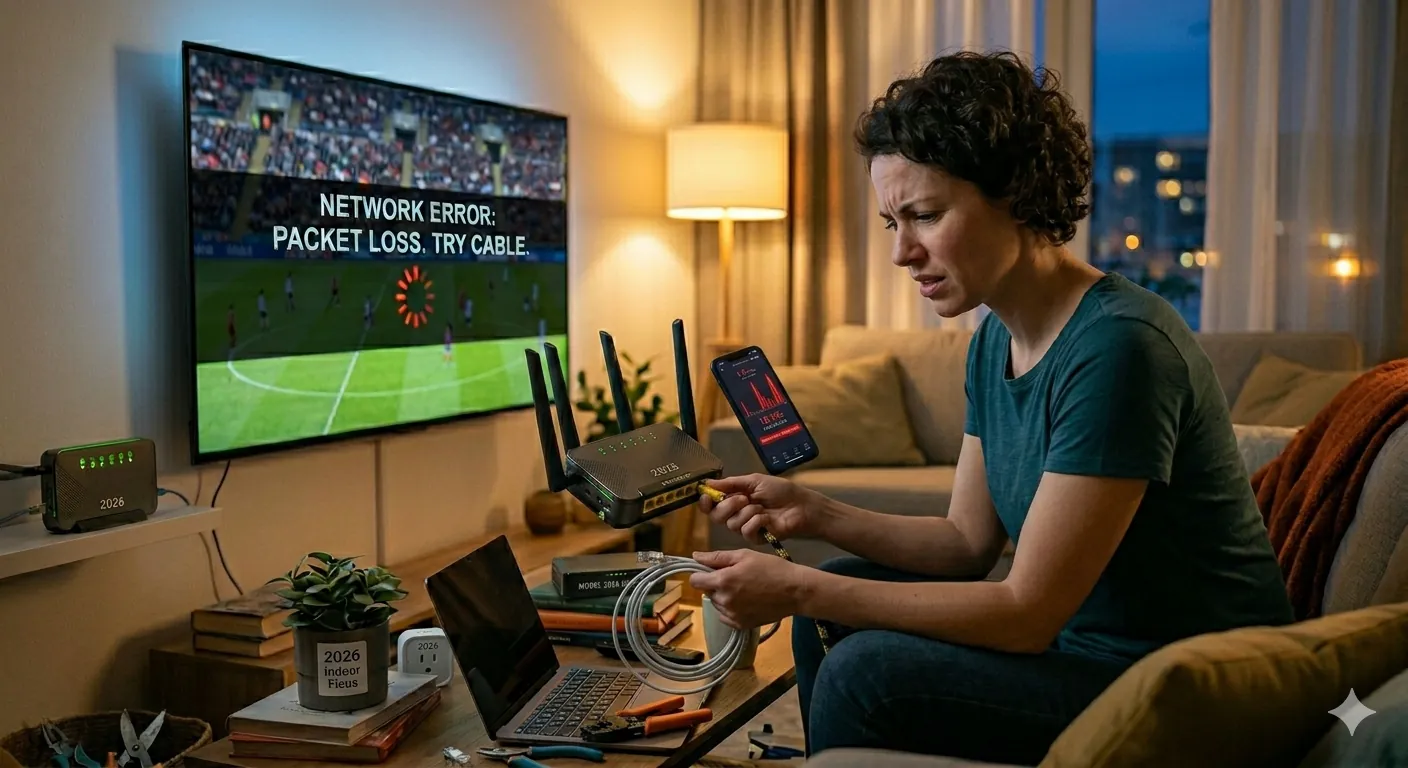
Before you try random fixes, it helps to understand what buffering really means. IPTV works by constantly requesting new video data over the internet. When the app cannot download enough data fast enough to stay ahead of playback, the stream stalls. That can happen because your internet is slow, but it can also happen because latency spikes, Wi-Fi is unstable, the app cache is bloated, or the provider server is under heavy demand.
Slow or Inconsistent Internet Connection
Bandwidth still matters. For most IPTV services, a practical baseline is 10 Mbps for SD, 15 to 20 Mbps for HD, and at least 25 Mbps for 4K. But raw speed is only half the story. If your speed fluctuates wildly, you have jitter, or your connection drops packets, IPTV lagging becomes more likely even when your subscription plan looks fast enough.
ISP Throttling
Some internet providers shape or deprioritize heavy streaming traffic during peak hours. A common sign is that IPTV freezes more at night, while websites and social apps still feel normal. In that case, the line is not necessarily slow. It is being managed in a way that harms live playback.
Overloaded IPTV Servers
Not all buffering comes from your side. If too many viewers hit the same channel source or if the upstream feed is unstable, even a fast home connection can end up waiting on the provider. This is why troubleshooting should always include comparing multiple channels and checking whether VOD performs better than live TV.
Weak Device Performance
Older Smart TVs, low-RAM Android boxes, and entry-level streaming sticks can struggle when apps pile up in memory, EPG data gets heavy, or high-bitrate streams demand more decoding power. IPTV freezing on one device but not another is often a device issue, not a network issue.
App Cache, Buffer Size, or Playback Settings
Many IPTV apps store temporary data for faster loading. Over time, that cache can become cluttered. Some apps also expose buffer size controls, hardware decoding toggles, or video player options. A bad combination there can produce IPTV slow streaming, stutter, or repeated rebuffering.
Solutions
How to Fix IPTV Buffering Step by Step
The fastest way to fix IPTV buffering is to work from the easiest wins to the most technical checks. That keeps you from wasting time on advanced changes when the problem is really just weak Wi-Fi or an overloaded app.
1. Run a Real Speed Test and Look Beyond Download Speed
Use a trusted tool such as Speedtest or Cloudflare Speed Test. Check download speed, but also pay attention to latency and stability. If the result looks good once and bad the next time, your issue is instability rather than pure bandwidth.
2. Switch From Wi-Fi to Ethernet If Possible
This single change solves a surprising number of IPTV freezing complaints. Ethernet removes a huge amount of interference, especially in apartments, offices, and homes where many devices are competing on the same wireless band. If you cannot use Ethernet, try 5 GHz Wi-Fi and move the device closer to the router.
3. Restart the Router, Device, and IPTV App
It sounds basic, but it works because it clears temporary conflicts. Restarting the router refreshes the connection path. Restarting the device clears stuck background load. Restarting the app can flush a corrupted buffer state and force a cleaner stream request.
4. Clear IPTV App Cache
On Android TV, Fire TV, and many Android boxes, clearing the cache is one of the best first fixes. It removes old temporary data without wiping everything. If buffering keeps coming back, a full app reinstall can also help. Use the app storage menu if the player itself does not provide a built-in cache tool.
5. Reduce Stream Quality Temporarily
If a 4K or high-bitrate HD channel stutters, test a lower-resolution stream. This is not the ideal long-term answer, but it helps isolate the problem. If lower quality works fine, your connection or device may be right on the edge of what the original stream requires.
6. Test Different Channels and VOD Content
If only one channel buffers, it is likely a source issue. If live TV buffers but VOD is smooth, the live delivery chain is the problem. If everything buffers across the board, focus on your home network, app, or device first.
7. Try a VPN Only If You Suspect Throttling
A VPN is not a universal fix. It helps mainly when your ISP is throttling or shaping traffic. Test one nearby server and compare performance. If the stream becomes more stable, throttling may have been part of the issue. If it gets worse, turn the VPN off and continue troubleshooting elsewhere.
- Use Ethernet whenever you can
- Prefer 5 GHz Wi-Fi over crowded 2.4 GHz bands
- Close unused apps on low-power streaming devices
- Update the IPTV app and system software regularly
- Keep your IPTV Setup Guide handy if you need to rebuild the app from scratch
Troubleshooting
Advanced IPTV Troubleshooting for Persistent Buffering
If the quick fixes above did not solve the issue, go deeper. IPTV troubleshooting gets more reliable when you test one variable at a time. Change the connection, then test. Change the app setting, then test. Change the device, then test. Avoid changing everything at once because you will never know what actually fixed it.
Compare Devices on the Same Network
If the same playlist buffers on your Smart TV but works fine on a Fire TV or laptop, the TV app or hardware is the bottleneck. In that case, switching apps or devices may deliver a bigger improvement than changing the internet plan.
Check Peak-Hour Behavior
Watch the same channels during quiet hours and again during evening peak time. If IPTV buffering spikes after dinner every day, that pattern points toward ISP congestion, Wi-Fi saturation inside the home, or higher demand on the provider side.
Adjust Player Settings Carefully
Some IPTV apps let you switch between internal and external players, enable hardware decoding, or change stream timeout behavior. If you are seeing IPTV freezing with one player, testing another player engine can help. Just document the original setting so you can roll back if needed.
When to Contact Support
Once you have tested Ethernet versus Wi-Fi, speed results, multiple channels, multiple devices, and app cache clearing, you have enough useful evidence to contact support. Tell support which device you used, which app, whether VOD worked, whether the issue happened on all channels, and what your speed test looked like. That gives support a real starting point instead of the vague message "IPTV is buffering."
FAQ
Frequently Asked Questions About IPTV Buffering
Why does IPTV keep buffering?
Because the stream is not arriving fast enough to stay ahead of playback. That usually means unstable internet, Wi-Fi interference, ISP throttling, overloaded servers, or an underpowered device.
What internet speed do I need for IPTV?
Plan for 10 Mbps or more for SD, 15 to 20 Mbps for HD, and 25 Mbps or more for 4K. Stability matters as much as speed.
How do I stop IPTV freezing on Fire Stick?
Clear app cache, reboot the device, move to 5 GHz Wi-Fi or Ethernet if available, close background apps, and make sure the player is updated.
Can a VPN stop IPTV buffering?
It can help when your ISP is throttling streaming traffic, but it is not a guaranteed fix. Test it, do not assume it.
Why is IPTV worse at night?
Peak-hour congestion can hit your home network, your ISP, or the provider's channel sources all at once, making evening playback less stable.
Should I change IPTV apps if buffering stays bad?
Yes, if the same stream works better in another player or app on the same device. That usually points to app optimization rather than raw internet issues.
Expert Review
Editor Verdict On This Fix Guide
4.9/5
This guide is designed to solve IPTV buffering in a logical order instead of throwing random advice at readers. It balances beginner-friendly steps with the deeper checks that matter when freezing comes from network instability, app settings, or provider-side congestion.
Conclusion
Fix The Bottleneck, Not Just The Symptom
IPTV buffering and freezing usually improve once you isolate the real bottleneck. Start with the network, move to the device, then test the app and the stream source. If you follow the sequence in this guide, you can usually tell whether the issue is inside your home, inside the app, or upstream with the server.
If you want a cleaner setup path after troubleshooting, open the IPTV Setup Guide, compare the IPTV Subscription Plans, or contact Cheap IPTV support for hands-on help.